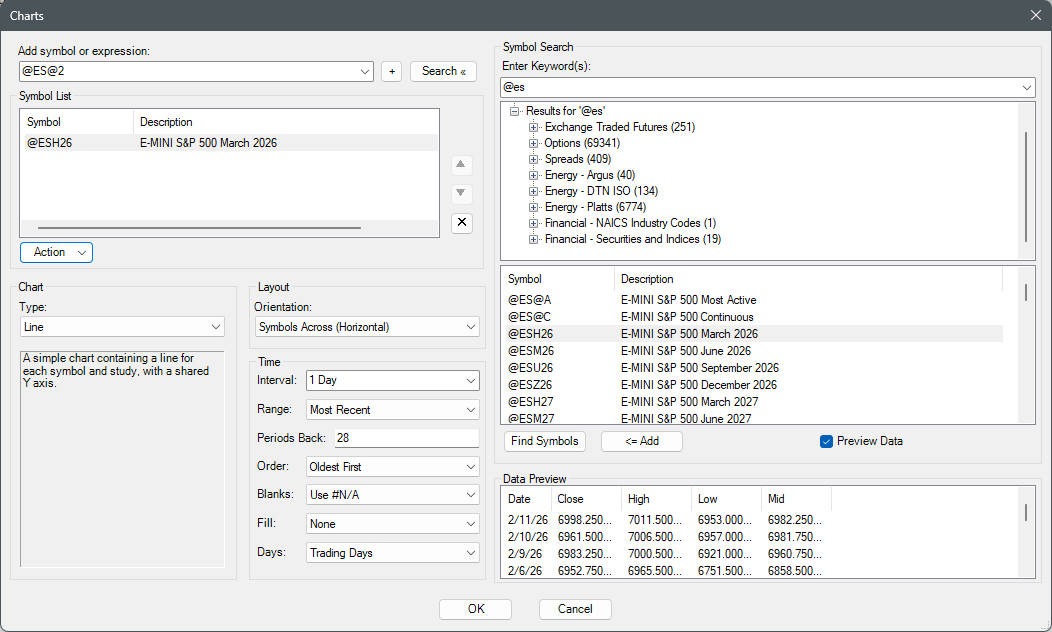
This symbol dialog box is the easiest way to find the symbols for your Quotes, Charts and History displays.
- Add symbol or expression: Enter the exact symbol you are looking for. This includes alias such as @1 and @2 for forward months. The click the “+” to add that symbol to the symbol list.
- Symbol List: This is the list of symbols that will open in your display of choice. You can move symbols up and down or delete them all together.
- Action: This drop down box will allow you to make changes to how the symbols are displayed.
- Convert Currency: Change the currency value from one currency to another.
- Convert units: Convert units from one unit to another. (i.e. barrels to gallons or bushels to tons.)
- Lead/Lag: Will shift the “X” axis number of periods forward (lead) or backward (lag)
- Hide/Show Columns: Select the columns you want displayed
- Add Study: Select from a number of studies to display on your Charts or History display.
- Study Properties: For each study, you make changes to the configuration of how it will display.
- Layout: Configure how you want your display to look by making changes using the drop down boxes.
- Symbol Search: If you don’t know what symbols you are looking for, enter a key word (i.e. Corn, Diesel) and then select Find Symbol or hit Enter on your keyboard. Once you have found the right symbol, click on it to select, then click <=Add to add it to the Symbol List.
- Data Preview: Once you select a symbol, you will see real data for that symbol in this box.